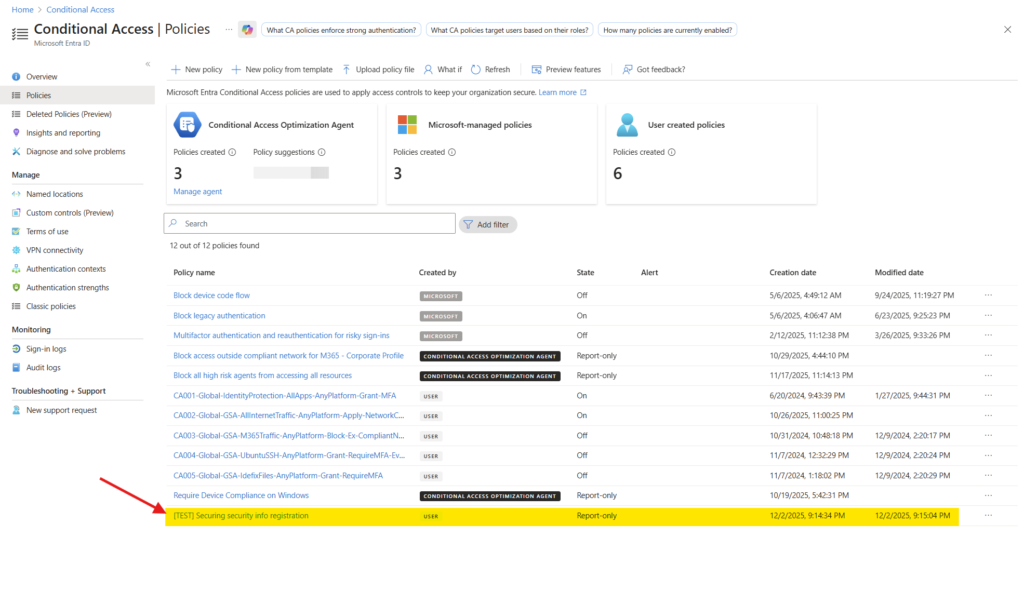

Previously, deleting a Conditional Access (CA) policy in Microsoft Entra ID was permanent, once removed, it couldn’t be recovered. in short – it was gone!
Now, Entra ID got a soft delete with backup and restore capabilities. When a CA policy is deleted, it enters a soft-deleted state instead of being immediately purged. This feature is in Preview (at least at 02.12.2025).
- Retention period: 30 days
- During this time, admins can view, restore, or permanently delete the policy.
- After 30 days, the policy is irreversibly deleted and cannot be recovered via any interface or Graph API.
This design reduces the risk of accidental deletions and strengthens governance by providing a recovery window before permanent removal if someone does a wrong move.
Pre-req
Not everyone has this capability of course, only users with specific administrative roles in Entra ID.
Prerequisites for recovery in the Entra admin center:
To restore a deleted CA policy, you must be signed in with one of these roles:
- Conditional Access Administrator
- Security Administrator
- Global Administrator
Best practice: For security and least privilege, use the Conditional Access Administrator role whenever possible.
And if you are to restore from Microsoft Graph, you need to be granted or grant your self this scope
- Read out deleted policy: Policy.Read.ConditionalAccess
- Restore an policy: Policy.ReadWrite.ConditionalAccess
When querying for deleted CA Policies we use this endpoint – https://graph.microsoft.com/beta/conditionalAccess/deletedItems/policies
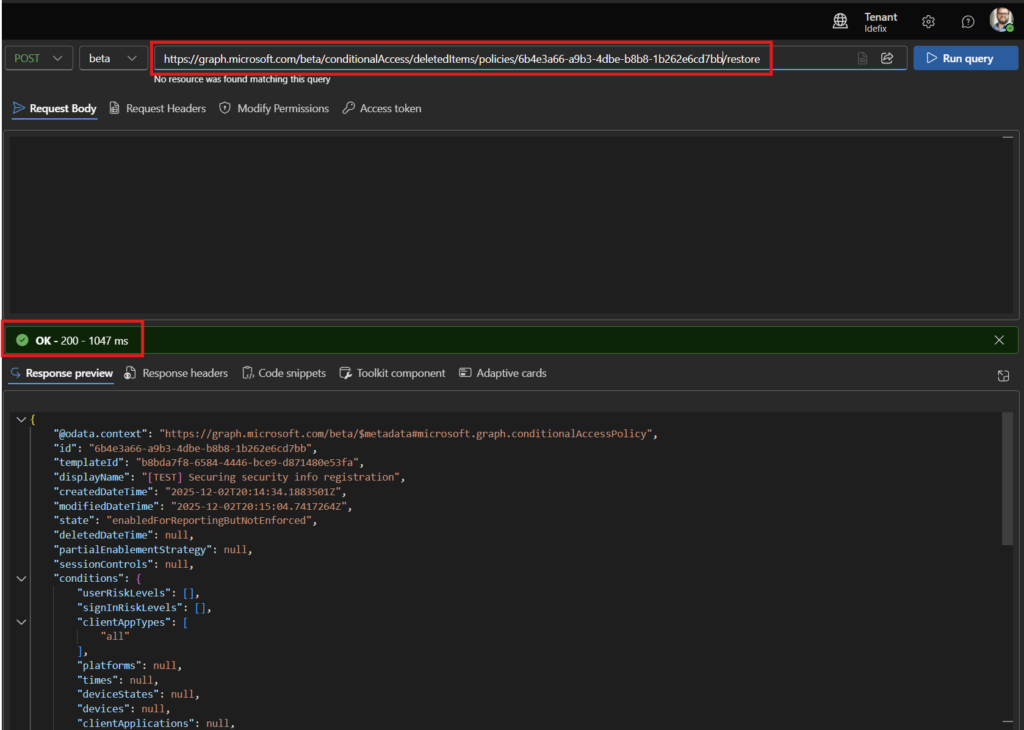
When doing a restore of a CA Policy from Graph – https://graph.microsoft.com/beta/conditionalAccess/deletedItems/policies/{policy-id}/restore
Restore a deleted Conditional Access Policy
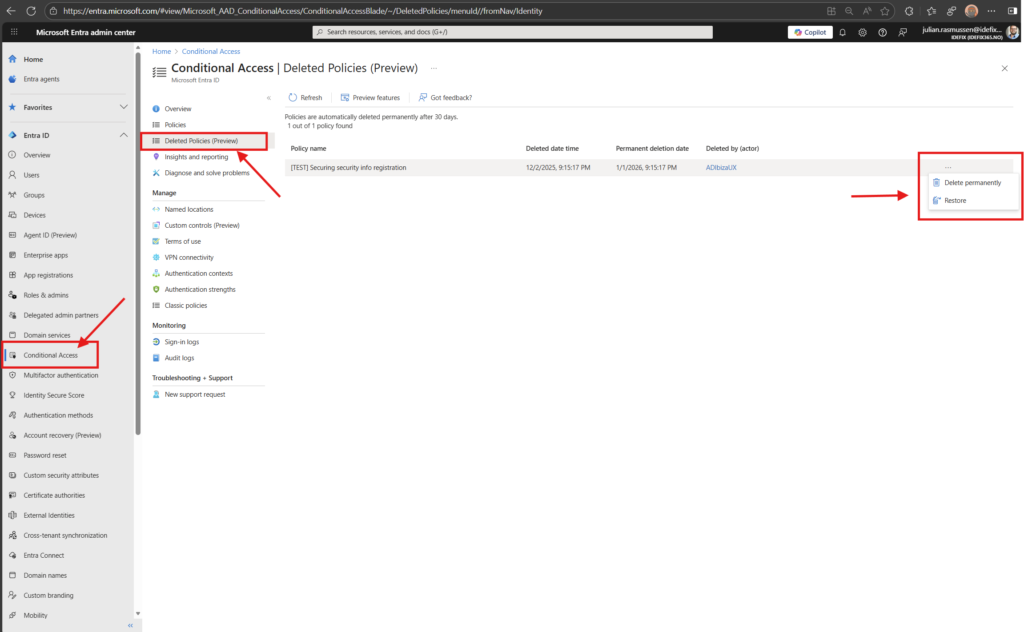
When using Microsoft Entra admin center to restore a Conditional Access Policy, this is how it’s done:
- Sign in to the Microsoft Entra admin center with an account that has one of the required roles (Conditional Access Administrator, Security Administrator, or Global Administrator).
- Navigate to:
Entra ID → Conditional Access → Deleted Policies (Preview)
This tab shows details like Policy Name, Deleted Date, Permanent Deletion Date, and Deleted By (when writing this blogpost the deleted by is not showing the correct value). - Find the policy you want to restore in the list.
- Click the ellipsis (…) menu next to the policy and select Restore.
- In the dialog box, choose if you want to keep Previous state or change it to Report-only mode after restore
- Click Restore. The policy will disappear from the Deleted Policies list and reappear in your main Policies list.
⚠️ Important
Restoring a policy to its previous configuration may lead to unexpected behavior.
To minimize risk:
- Enable the policy only after full validation
- First restore in Report-only mode
- Review the results thoroughly
View and restore from Microsoft Graph
let’s have a look on how to both view and restore the Conditional Access Policy by using Microsoft Graph.
I’m using Graph Explorer for visualization here.
- Head over to “https://developer.microsoft.com/en-us/graph/graph-explorer” and sign in in the top right corner.
- Click on your name on the top right corner when signed in and navigate to “Consent to permissions”
- Here we need to search up Policy.Read.ConditionalAccess and Policy.ReadWrite.ConditionalAccess and Consent both of them.
- Go to the Graph URI navigation and chose what action you are doing (Get for read) and add the URI: https://graph.microsoft.com/beta/conditionalAccess/deletedItems/policies
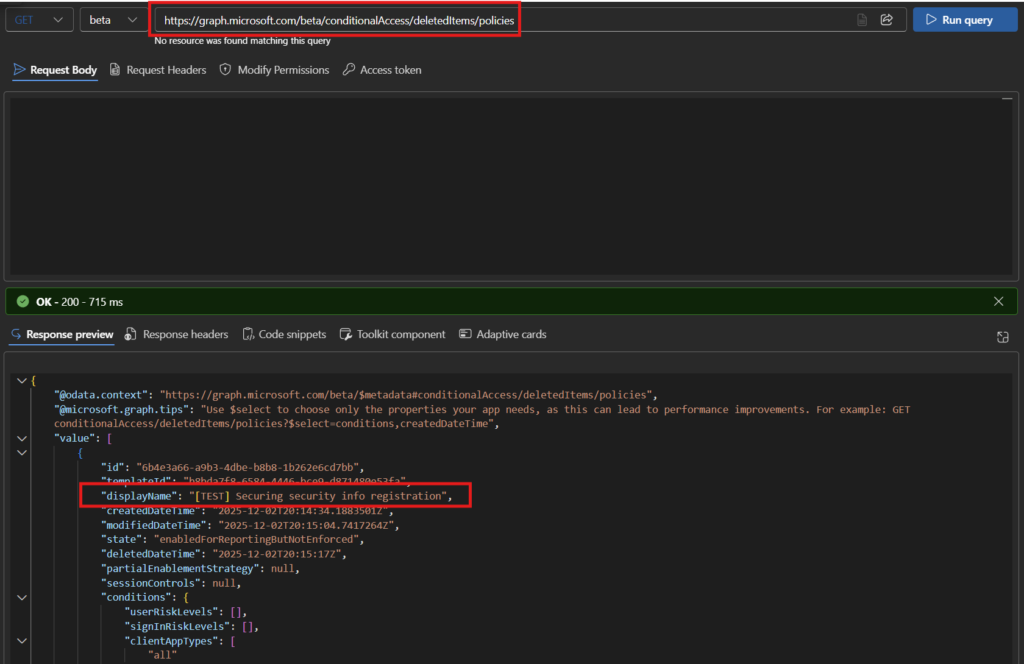
- If you want to restore a policy take note of the ID from the read-out and use that into the URI when running a “Post” command.
- When looking into the Entra Admin center after the last command we can see that the policy is in fact restored and are back in a “Report-only” state ready to be assessed before getting enabled.